
Create and Edit GitLab Issues on Android
You can create and edit GitLab issues on Android with GitAlchemy, a free open source GitLab client. Open a project, tap its Issues list, choose New issue from the menu, type a title and a Markdown description, and tap Create issue. Afterwards you can set the assignee, the labels and the milestone, comment, and close or reopen the issue from the same app.
Create an issue
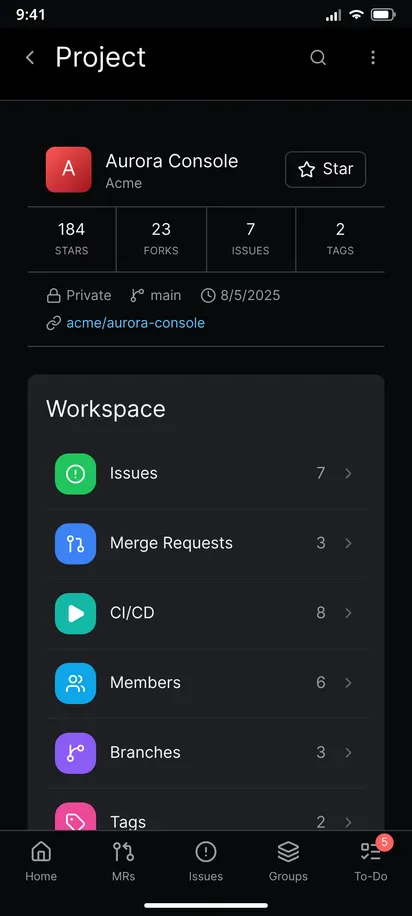
- Open the project. Pick it from the Projects tab or from your home screen.
- Open its Issues list. The Filters button has four groups: State with All Issues, Opened and Closed, Scope, Type and Ordered By. The chosen filters show as chips you can remove.
- Choose New issue from the header menu. The form opens with the project name above it.
- Type a title. The title is the only required field. The form says so if you leave it empty.
- Write the description. The editor saves GitLab Markdown. Type
@to mention a person,#for an issue,!for a merge request,~for a label,%for a milestone and:followed by two letters for an emoji. - Tick Confidential issue if only project members should see it.
- Tap Create issue. The app opens the new issue.
Set assignees, labels and a milestone
The create form takes the title, the description and the confidential flag. You set the rest on the issue itself.
- Open the issue and choose Edit Issue from the header menu.
- Change the title or description, or open the assignee, label and milestone pickers.
- The pickers list the people, labels and milestones of that project, so you can search instead of typing a name by hand.
The change shows at once and is put back if GitLab refuses it, for example when you lack the rights to edit labels.
Comment, close and reopen
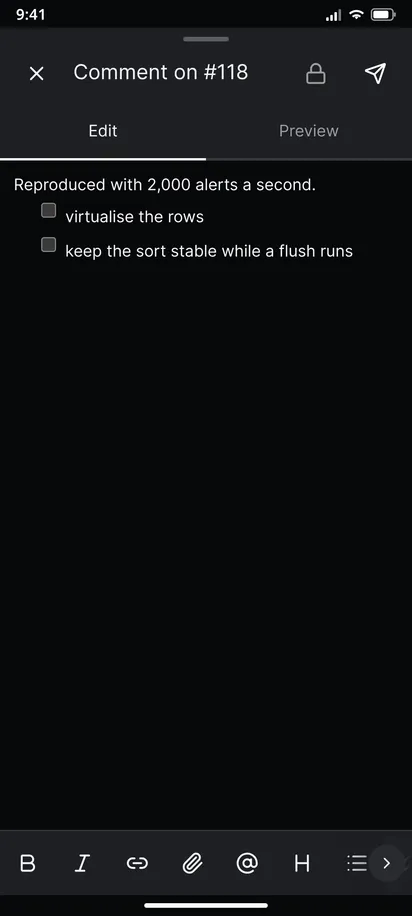
Tap Comment on the issue to open the full-screen editor. The formatting row sits above the keyboard and swipes sideways. A comment you send shows up immediately with no refresh. The header menu also holds Close Issue, Reopen Issue, Copy URL and Delete Issue. Delete Issue is only worth using on your own mistakes, because it removes the issue for everyone.
A tip: tasks and checkboxes work
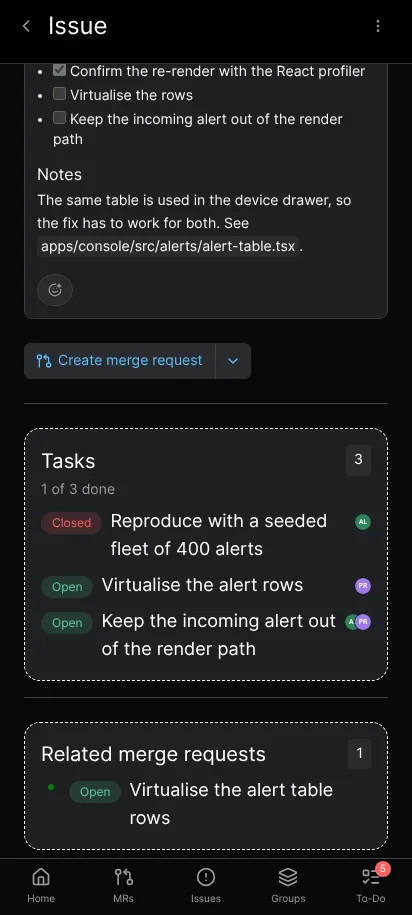
Checkboxes in an issue description can be ticked when you are allowed to edit the description, and a failed save puts the checkbox back. Child tasks show in the issue screen too, as covered in GitLab tasks on Android.
Limits
- Creating an issue by sharing text or a screenshot from another app is on the roadmap and does not exist yet. For now, open the app and use New issue.
- Creating and editing write to GitLab, so the token needs the
apiscope, andread_apiis not enough. See how to sign in with a personal access token.
Related
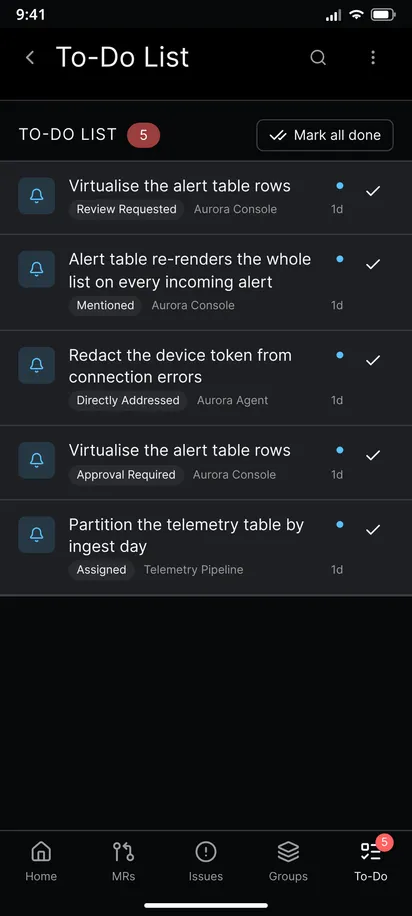
This is one step of the GitAlchemy for Android walkthrough. When someone assigns an issue to you, it shows up in your GitLab to-do list on Android, and you can browse the repository to find the code the issue talks about.
FAQ
Can I create an issue on a self-hosted GitLab?
Yes. The app works the same on gitlab.com and on a self-hosted instance.
Can I find an issue I closed last week?
The global Issues list starts on All Issues, so closed ones are already included. If you narrowed it, open Filters and set State to Closed, or use the search screen to search issues by words in the title.
Related Articles
More from Mobile Workflows
Take GitLab with you
Gitalchemy is free and open source. Install it on Android from F-Droid.
Questions, or want to follow the work? Reach us at contact@gitalchemy.com or star the project on GitLab.