
GitAlchemy for Android: the complete walkthrough
GitAlchemy is a free, open source GitLab client for Android under the MIT license. You install it from F-Droid, sign in with a personal access token, and then read and act on your projects, issues, merge requests, pipelines and to-dos from the phone. It works with gitlab.com and with self-hosted GitLab, shows notifications without Firebase, and keeps as many accounts signed in as you like. It is for Android only. GitLab has no official mobile app, and GitAlchemy has no iOS or desktop version. This walkthrough follows a normal day with the app.
Install and sign in
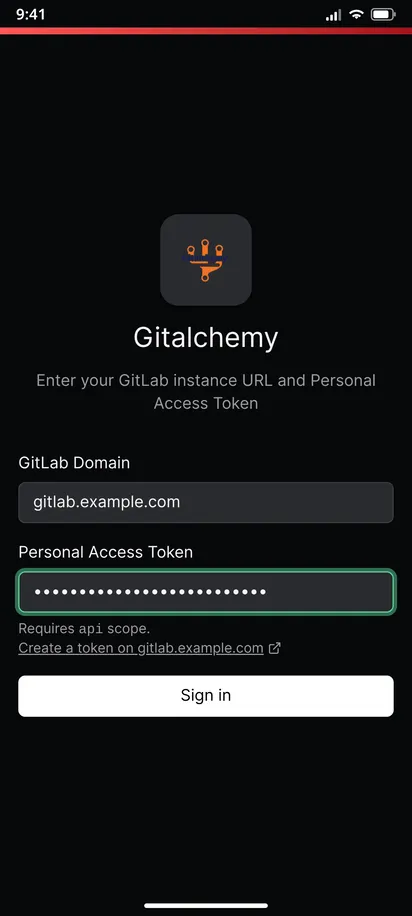
Open the GitAlchemy page on F-Droid and install the app. No Google account is needed. On the sign-in screen, enter your GitLab domain, such as gitlab.com or gitlab.example.com, and a personal access token with the api scope, then tap Sign in. The screen says Requires api scope, and a link under the token field opens GitLab's new token page with the scope filled in. A read_api token is not enough, because the app writes to GitLab. The server needs a certificate from a public authority, because self-signed and private CA certificates are not supported. Details and fixes for a rejected token are in the access token guide, and servers behind a VPN are covered in the self-hosted guide.
What you need
An Android phone or tablet, a GitLab account on gitlab.com or on your own server, and a few minutes. You do not need a Google account, because F-Droid does not ask for one. You do not need to install anything on your GitLab server either. The app talks to the API that every GitLab already has.
The steps
Each step below is one task, with a short answer here and a full guide behind the link.
1. Start from the home screen
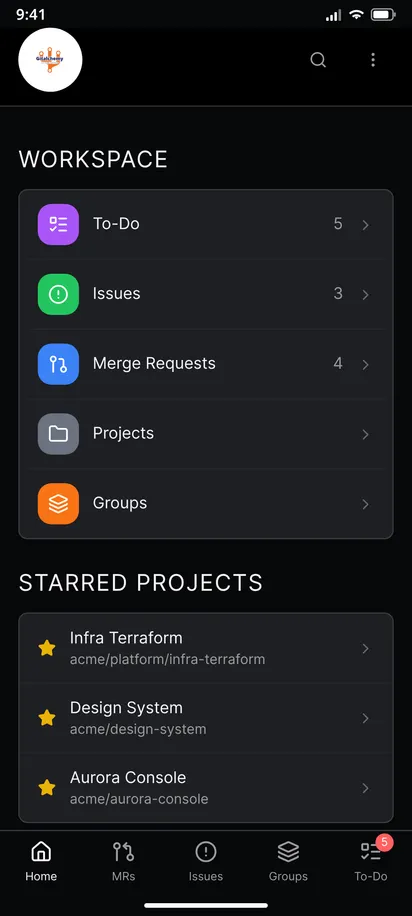
The home screen shows your starred projects and the latest activity. The bottom bar takes you to Home, merge requests (MRs), Issues, Groups and the To-Do list. Use the header for search and the three dots menu, which lists your accounts, and the bottom bar for the command palette. To work with a second server, add another account. You can add one account per server address.
2. Find the issues that need you
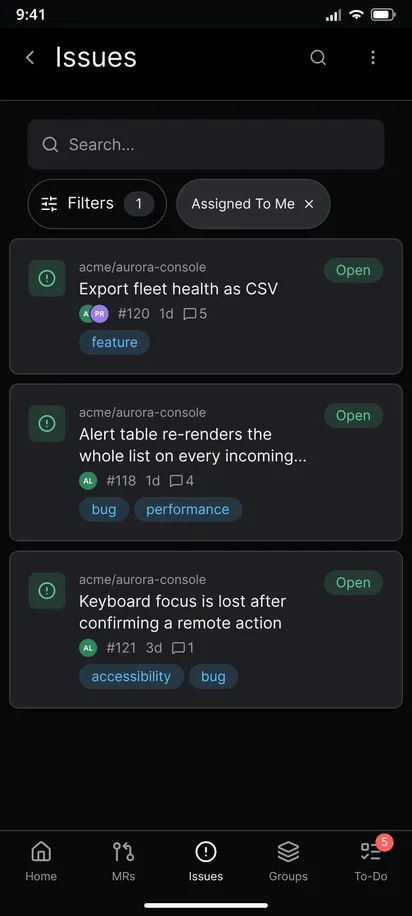
Open Issues, tap Filters and pick Assigned To Me. The chip shows the filter and Clear removes it. The Filters sheet has four groups: State with All Issues, Opened and Closed, Scope, Type and Ordered By. All Issues is the default, so closed issues are included until you narrow it.
3. Create or comment on an issue
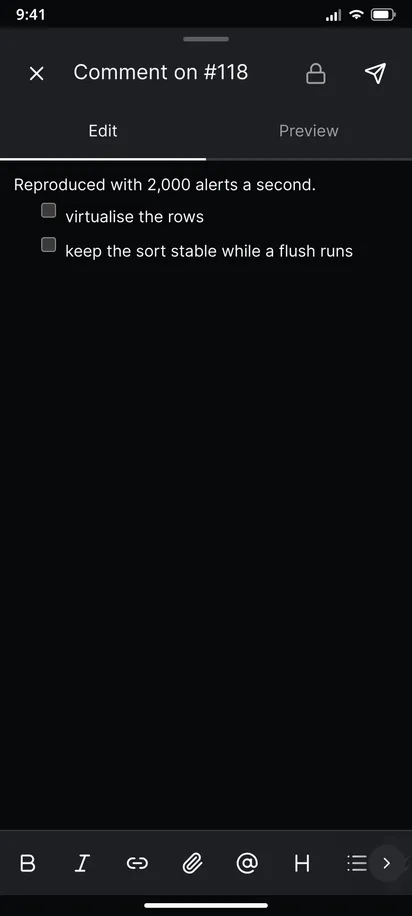
From a project's Issues list, choose New issue, type a title and a Markdown description, and tap Create issue. Comments use a full-screen editor with a formatting row and suggestions for people, issues, labels and emoji. See creating and editing issues.
4. Pick a merge request to review
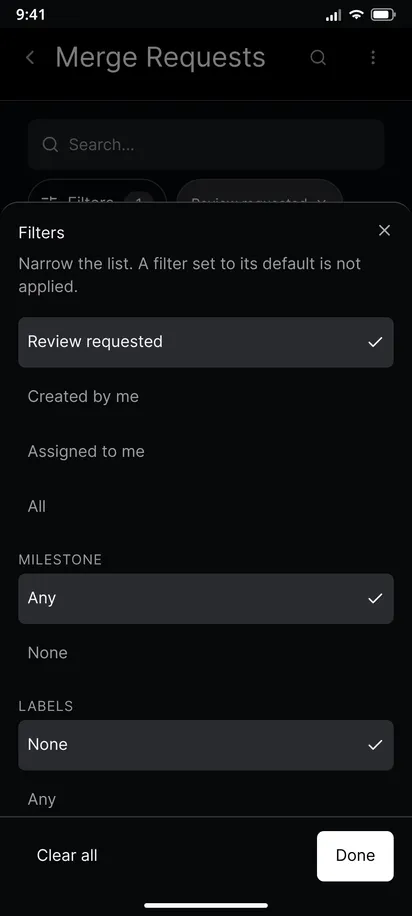
Open MRs, tap Filters and choose Review requested to see what waits for you.
5. Read the diff
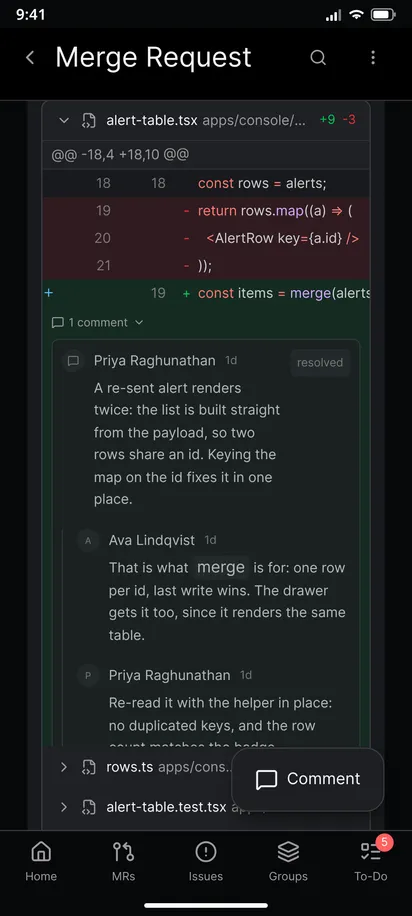
In the Changes tab, expand a file and read the diff. Tap a line to write a comment, then choose Add to review or Comment now. The diff switches between inline and side by side. The full flow is in reviewing a merge request.
6. Answer threads, approve and merge
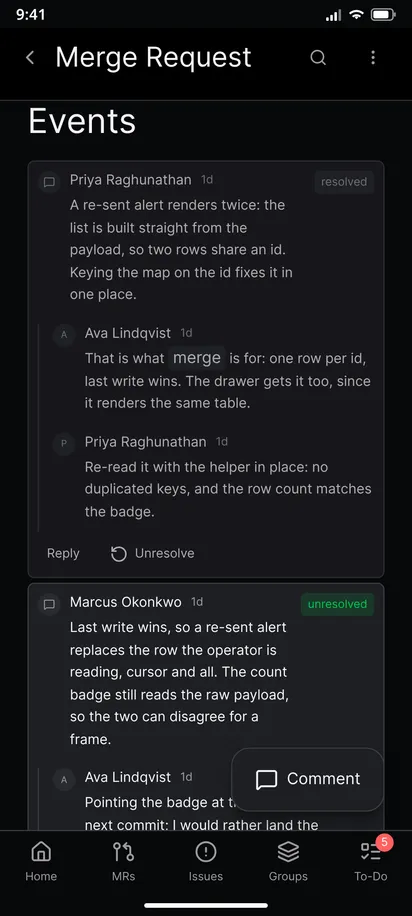
Threads sit under Events with Reply and Resolve buttons. Scroll to the readiness panel to approve, rebase or merge.
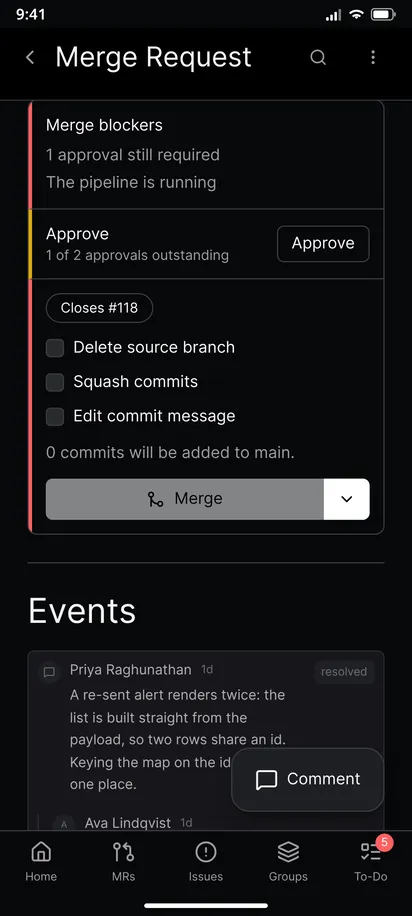 Read approving and merging before you press Merge.
7. Check the pipeline
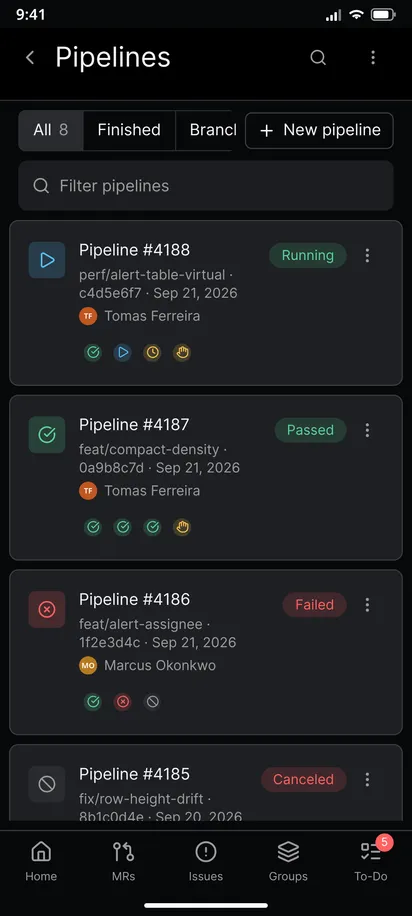
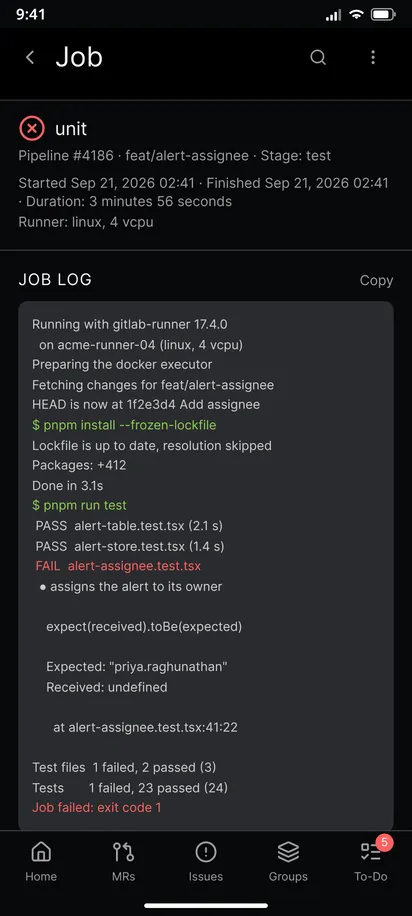
Open CI/CD in a project. Open a failed pipeline, then a job, to read its log.
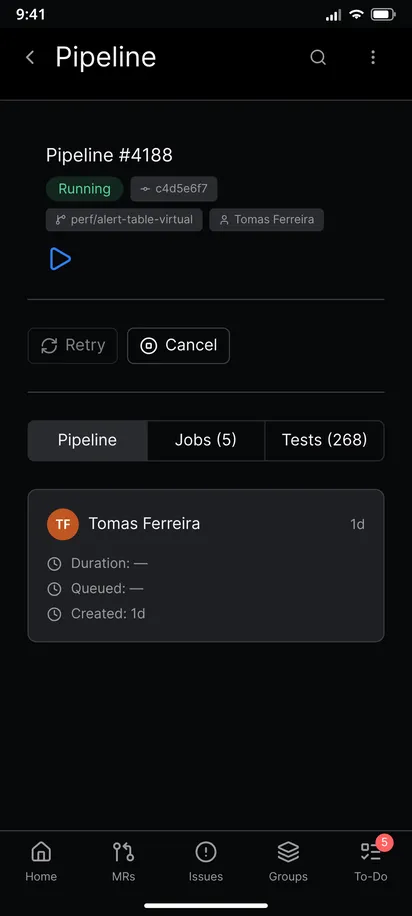
Retry or cancel from the action row. Two guides go deeper: pipeline and job logs and retry and cancel.
8. Clear your to-dos
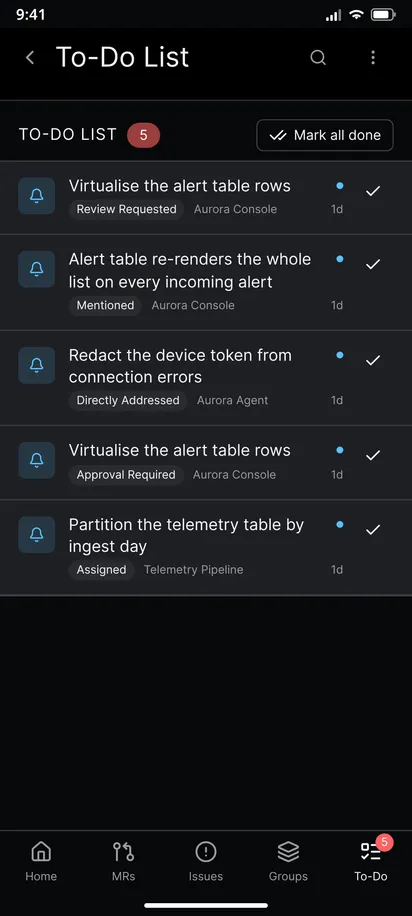
The To-Do tab lists what GitLab queued for you. Tap a row to open it and the check button to mark it done. With Notify while the app is closed switched on in Settings > Polling, each new to-do becomes a notification with a Mark done button. See the to-do list guide.
9. Browse the code
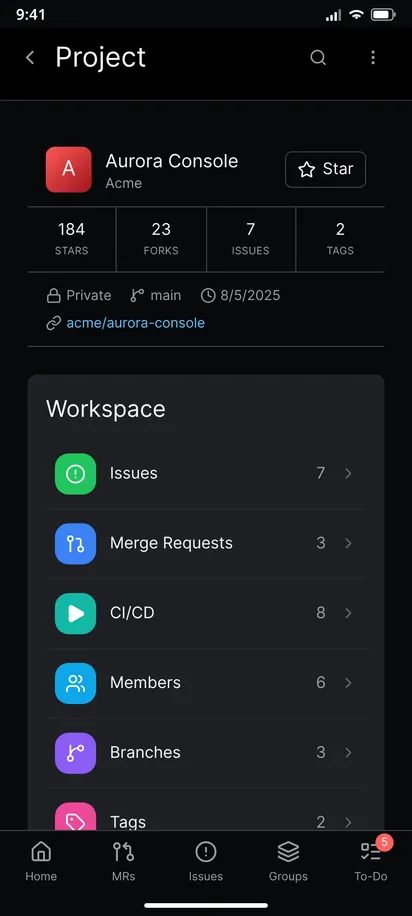
Open a project to read its README, switch branch, filter files with Find file and open a file with syntax highlighting. See browsing a repository.
Also in the app
- App lock. Settings > App lock locks the app after Immediately, After 1 min or After 5 min.
- Open links. The Open links setting makes GitLab links from listed hosts open in the app on Android. For a self-hosted server, share the link to the app.
- Line comments and reviews. Tap a line of a diff, write in the full-screen editor and choose Add to review or Comment now. Start a review to collect drafts.
- Mark done. The to-do notification has a Mark done button, and tapping it elsewhere opens the to-do.
- Command palette and search. The bottom bar has a command palette, and the top bar opens a search screen.
A day with the app
In the morning, open the To-Do tab and clear what you can answer quickly. When a review is requested, read the diff on the way to work and hold your comments as a review, then submit it at your desk. If a pipeline fails while you are away, open its log, copy the error and retry the job. Between those moments the notifications do the watching, so you do not need to open the app just to check.
What the app does not do
Knowing the limits saves time. GitAlchemy does not run on iOS or on a desktop. It does not clone repositories to the phone or edit files and commit them yet, though that is on the roadmap. It cannot resolve merge conflicts, and it cannot apply a suggested change from a review comment yet. Notifications are not instant, because Android decides how often a closed app may run. About every 15 minutes is the best case, and Android may stretch it to an hour or more unless the app is set to Unrestricted battery use. It does not accept self-signed or private CA certificates. For those cases, use GitLab in a browser and come back to the app for the rest.
Go deeper
- Access token and sign-in: create the token, pick the scope and fix a rejected token.
- Several accounts: add one account per server, such as gitlab.com and your own.
- Create and edit issues: write Markdown, set assignees and labels, close and reopen.
- Review a merge request: read the diff, comment and submit a review.
- Approve and merge: read the readiness panel and merge with squash.
- Pipeline and job logs: find the failing job and copy its log.
- Retry or cancel a pipeline: rerun, stop, play a manual job and start a new one.
- Notifications without Firebase: how the polling works and what the battery setting does.
- The to-do list: clear your queue from the phone.
- Browse a repository: README, branches, files and commits.
If you are still choosing a client, compare the options in the best GitLab clients.
FAQ
Is there an official GitLab app for Android?
No. GitLab publishes no mobile app. Third party clients fill the gap, and GitAlchemy is a free open source one that installs from F-Droid. See the official app explainer.
Does GitAlchemy work with a self-hosted GitLab, and which token scope does it need?
Yes. Yes, if it is served over https with a certificate from a public authority. Self-signed and private CA certificates are not supported. Enter your server address and a personal access token with the api scope. The app writes to GitLab when you comment, approve or retry, so read_api is not enough.
Does it send notifications without Firebase or Google services?
Yes. A background job polls the GitLab Todos API and shows one Android notification per to-do. Android decides how often a closed app may run, so checks come about every 15 minutes at best, and Android may stretch that to an hour or more unless the app is set to Unrestricted battery use. The notification guide has the details.
Can I review and approve a merge request from my phone?
Yes. You can read the diff, comment on lines, hold comments as a review, approve, rebase and merge. GitLab's own rules on approvals and protected branches still apply.
How many GitLab accounts can I use?
As many as you like, one per server address. Switch from the three dots menu.
Is there an iPhone or desktop version?
No. GitAlchemy is Android only, and there will not be an iOS app. For the iPhone options, read GitLab on iOS.
Related Articles
More from GitLab Fundamentals
Take GitLab with you
Gitalchemy is free and open source. Install it on Android from F-Droid.
Questions, or want to follow the work? Reach us at contact@gitalchemy.com or star the project on GitLab.